

Download Stickbackup – Portable USB Backup Tool
Overview
Stickbackup is a lightweight, portable backup utility designed specifically for USB flash drives, external hard disks, and any folder you need to protect with a quick copy. Unlike heavyweight backup suites that require installation, licensing, and a steep learning curve, Stickbackup runs directly from a pen‑drive without any installation steps. The tool follows a minimalist philosophy: you select a source folder, choose a destination, click “Continue” twice, and the data is copied.
Although the interface lacks advanced automation, versioning, or duplicate‑file handling, its simplicity makes it ideal for users who want a reliable, no‑frills solution for occasional backups. Stickbackup remembers the last source and destination paths, so when you keep the executable on the same USB you’re backing up, you can repeat the process with just a couple of clicks. The program also adds a friendly “Have a nice day!” message once the operation finishes, giving it a personal touch that many corporate‑grade tools miss.
In short, Stickbackup delivers a secure, portable, and free way to protect your files without the bloat of unnecessary features.
Key Features & Core Functionality
- Portable Execution: Runs directly from a USB stick; no installation required on Windows.
- Simple Two‑Step Backup: Choose source, choose destination, click “Continue” twice to start copying.
- Path Memory: Remembers the last used source and destination folders for faster repeat backups.
- Lightweight Design: The executable is under 2 MB, consuming minimal system resources.
- Cross‑Version Compatibility: Works on Windows 7, 8, 8.1, 10, and 11 (32‑bit and 64‑bit).
- Friendly UI Messages: Includes helpful prompts and a cheerful completion notice.
While Stickbackup does not provide scheduling, compression, or cloud integration, its core strength lies in its reliability and speed. The tool reads the file system directly, making it suitable for backing up large media libraries, project folders, or any critical data you keep on a removable drive. Because it avoids background services, you can safely run it on public computers or shared workstations without leaving traces on the host system. The lack of duplicate‑file detection means every run creates a fresh copy, which can be advantageous when you need a clean snapshot of a directory at a specific point in time.
Installation, Usage Instructions & Compatibility
Operating System: Windows (7 – 11). Stickbackup is a pure Windows executable and does not run natively on macOS, Linux, Android, or iOS. However, you can use it on those platforms via compatibility layers such as Wine.
How to Get Started
- Download the Stickbackup.exe file from the official website.
- Save the executable onto the USB drive you intend to back up or any other portable media.
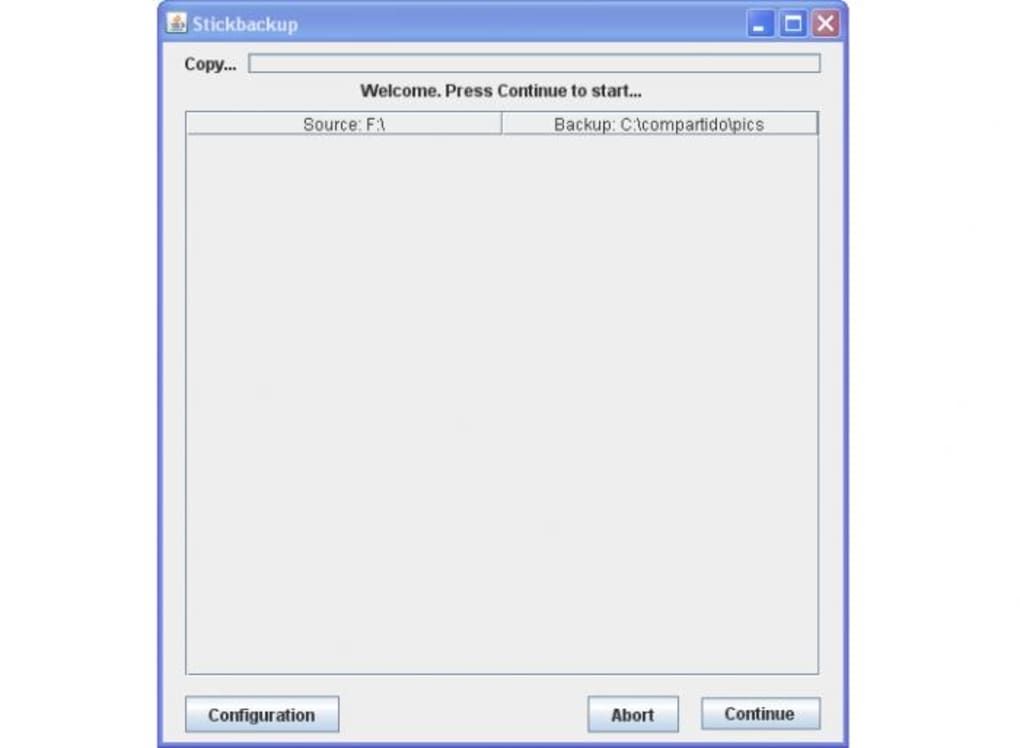
- Double‑click the file; the minimal interface will appear instantly—no installer or admin rights needed.
- In the “Source Folder” field, click “Browse” and navigate to the directory you wish to protect.
- In the “Destination Folder” field, select the root of the USB stick or a folder on an external HDD where the backup should be stored.
- Press the “Continue” button. The program will first verify the paths and display a summary.
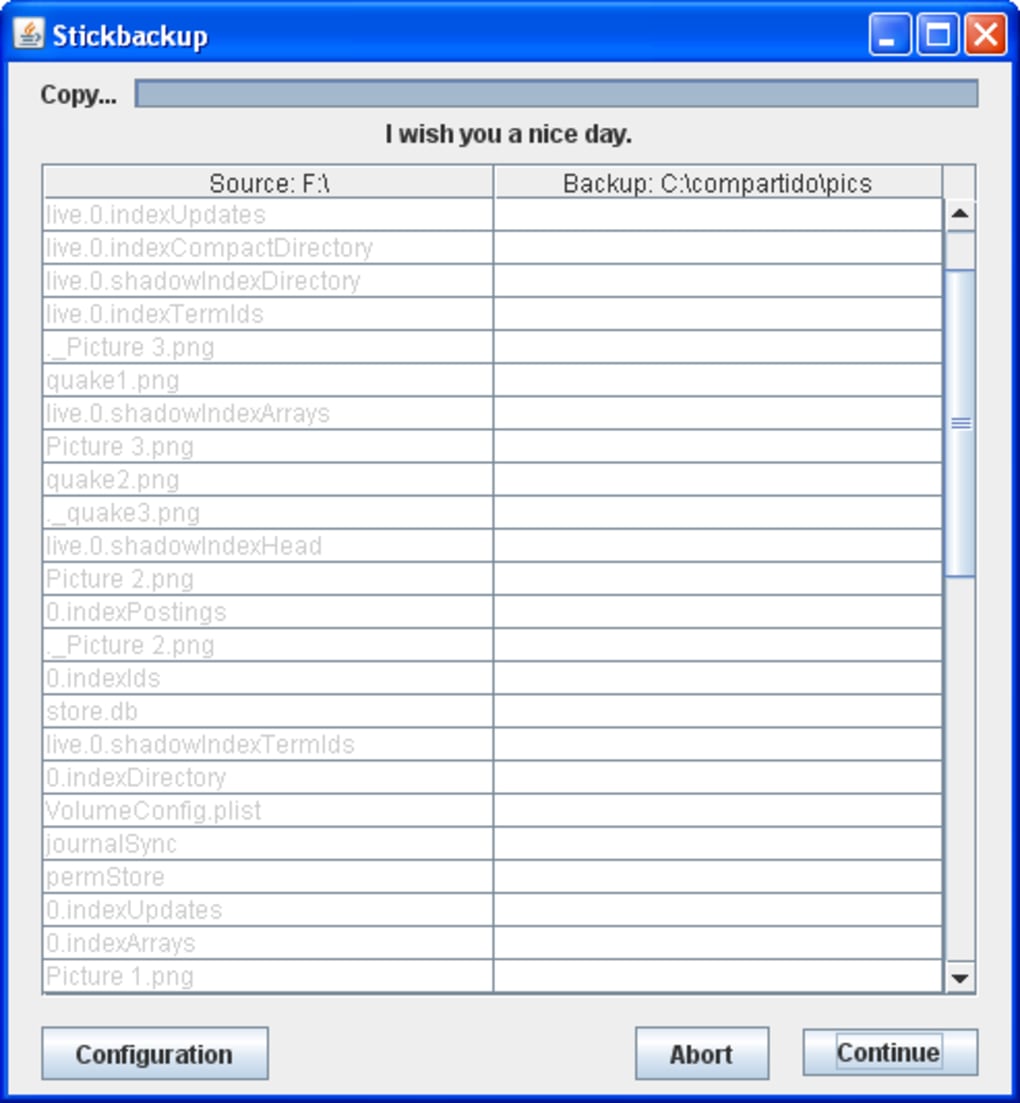
- Click “Continue” again to start the copy process. A progress bar shows file count and transfer speed.
- When the operation completes, Stickbackup displays a friendly “Have a nice day!” message and automatically closes (or you can close it manually).
Best Practices for Reliable Backups
- Keep the executable on the same USB: This ensures the remembered paths always point to the correct destination.
- Use a dedicated backup folder: Avoid mixing new files with old backups to prevent accidental overwrites.
- Verify after each run: Open the destination folder and confirm that the file count matches the source.
- Regularly replace the USB: While Stickbackup itself is robust, physical media can fail; rotate drives every 6‑12 months.
- Consider a checksum tool: For mission‑critical data, run a checksum (MD5, SHA‑1) on both source and backup to guarantee integrity.
Because Stickbackup does not require installation, you can safely use it on public or shared computers without leaving residual files. The application runs with standard user privileges, so it will not modify system registries or install services. This makes it an excellent choice for technicians, students, and anyone who needs a quick, secure copy of their files while on the move.
Pros, Cons & Expert Review
Pros
- Fully portable – no installation needed.
- Extremely lightweight, ideal for older PCs.
- Simple two‑click workflow minimizes user error.
- Remembers last used paths for rapid repeat backups.
- Free to use with no hidden fees or ads.
Cons
- Lacks automation, scheduling, or incremental backup features.
- No built‑in duplicate‑file detection; each run creates a full copy.
- Windows‑only; not natively available for macOS, Linux, Android, or iOS.
- No compression or encryption options for sensitive data.
- Requires two “Continue” clicks, which some users may find unintuitive.
Overall Rating: 4 out of 5 stars
Stickbackup excels at what it promises: a quick, portable way to copy files from one location to another. Its minimalistic design eliminates the learning curve associated with larger backup suites, making it perfect for occasional users and field technicians who need a reliable tool on the go. While power users will miss features like scheduled jobs, versioning, and encryption, the free, no‑install nature of Stickbackup outweighs these gaps for most casual scenarios. The only notable friction point is the double‑click “Continue” step, which could be streamlined in future updates. Nevertheless, the application delivers a secure, efficient backup experience without any cost, and the friendly completion message adds a pleasant human touch.
Frequently Asked Questions
Is Stickbackup completely free to use?
Yes, Stickbackup is 100 % free. There are no hidden fees, premium upgrades, or advertisements embedded in the application.
Can Stickbackup run on macOS or Linux?
Stickbackup is a native Windows executable. macOS and Linux users can run it through compatibility layers such as Wine, but there is no official macOS or Linux version.
Does Stickbackup encrypt my backup files?
No, the tool does not provide built‑in encryption. If you need encrypted backups, you should encrypt the destination folder with a separate utility after the copy is complete.
How does Stickbackup handle duplicate files?
Stickbackup does not check for duplicates. Each backup operation creates a fresh copy of all files from the source folder, overwriting any existing files with the same name in the destination.
Can I schedule automatic backups with Stickbackup?
No, the application does not include scheduling or automation features. It is intended for manual, on‑demand backups only.
Conclusion & Call to Action
If you need a quick, secure, and completely portable solution for copying important folders to a USB drive or external disk, Stickbackup delivers exactly that. Its ultra‑light footprint, zero‑install design, and straightforward two‑step workflow make it a practical choice for students, freelancers, and IT technicians who often work across multiple machines. While power users may crave more advanced features such as incremental backups, encryption, or scheduling, the free nature of Stickbackup ensures that anyone can protect their data without a financial commitment. To experience hassle‑free backups, download Stickbackup now, place the executable on your USB stick, and start safeguarding your files with just a couple of clicks.







